But none of my clients use Nozbe (yet!), so I've yet to implement this efficient process into my daily practice. That is, until I discovered the magic of delegating. I'm working on a fairly big project for one of my clients. I knew when I accepted the project, that I would probably need some help. However, after nearly 12 years of solopreneuring, I'm not skilled at asking for or finding help. And this particular project has a pretty small budget. So options were limited. At the same time, my 17-year-old son was finishing up his summer internship and needed a job for the school year. He's involved in some awesome extracurricular activities that leave his availability for working pretty limited. (I could go on another long rant about the state of teen jobs here, but I'll save that for another time and place.) I should mention, though, that he goes to a New Tech high school, and over the last three years, he's developed some pretty good technical skills. We were both in a good position to help each other out, so I decided to give hiring him a try. As his mom, I already knew how smart he was. But as his boss, it's been great to see how having someone really smart helps save me time and lets me focus on the more valuable aspects of my work while delegating the more repetitive and tedious tasks to him. As the next #10stepsbook quote explains “In order to succeed, it's worth accepting that others can be as capable of accomplishing a task as you are.” In fact, sometimes getting another point of view helps you find more efficient ways of working. So, with that said, here's an overview of the process of delegating tasks in Nozbe.
I hope you can incorporate this productivity practice into your daily life. Delegating is magic!
0 Comments
 No matter how many inboxes you have, the productivity practice that made the biggest impact for me is in learning how to approach those inboxes. What is the plan for tackling the tasks that come your way? How do you manage to accomplish your goals, despite the constant noise coming from every direction? Productivity amplifies when you look at each item in your inbox as few times as possible. Even it it's only seconds at a time, you waste time every time you look at an item and don't take the action it represents. However, trying to finish all of the tasks as you process the inbox isn't productive either. So processing the inbox is a balancing act between touching an items as few times as necessary, and performing the task it represents at the right time. The way I handle this balancing act - and the practice that has relieved so much stress for me - is to approach the inbox knowing that the first task is simply to make a decision on each item. And there are really only 5 possible decisions to make, which hopefully makes the time I spend making the decision as short as possible. Here are the decision possibilities:
Deciding what to do can be a simple micro-second reaction to an item in my inbox. But there is a whole other aspect to deciding what to do that is this: deciding what to do NEXT. Deciding what to do next is the core of successful project planning and completion, and is the most cognitively demanding part of productivity. It's also the story for another day. But don't worry, I've also added that task to my project for this blog to be completed when the time comes!
 Michael Sliwinski's upcoming "10 Steps to Ultimate Productivity" book #10stepsbook Incoming Affairs For the second Nozbe #10stepsbook launch team challenge, I'm going to tell you about my inboxes. (Read about the first challenge here.) Yes, that's plural. Our lives are complicated, with various information, tasks, responsibilities and projects coming at us non-stop. My solution may not be perfect (and I'm always improving it), but as I said last week, productivity takes practice. I have (gasp) three different email addresses that have a constant flow of tasks, useful information, and not-so-useful info. My first email address was born sometime in the late 90s and I don't need to justify why I still use this Yahoo address. (Okay, maybe I do.) My extended family uses it. It's the one I use when I purchase something from a company, so all of the future promotions and coupons go to this least important of my inboxes. (So family, if you really need me, text is better.) This Inbox gets literally hundreds of messages a week. I do have some automatic workflows that help me corral the flow. I use the unroll.me service to get messages related to promotions together (which represents about 90% of this inbox). And I use filters and folders to send social media messages to their own folder. I spend very little time processing this inbox (10 minutes a day or less, which often includes some tasks done with the 2 minute rule). My less-ancient gmail address is for professional endeavors. I also have a new email that matches my Virtual Customer Learning domain as well. Work information arrives here. Plus, I'm following quite a few companies and influencers, so much of what I get here represents something I want to read. (I'll talk about that process later in the article). I've set up my email so I can see messages to these two addresses at the same time in a nifty tool called Inbox that bundles messages together - for example, all of the messages from one client get one collapsible view on the Inbox. I can mark them done when I've finished processing, and I get this great motivating image when these inboxes are empty. I process this Inbox around 4 times a day, sometimes more if I'm waiting on a client, but I try not to let it distract me when I'm working on other tasks. 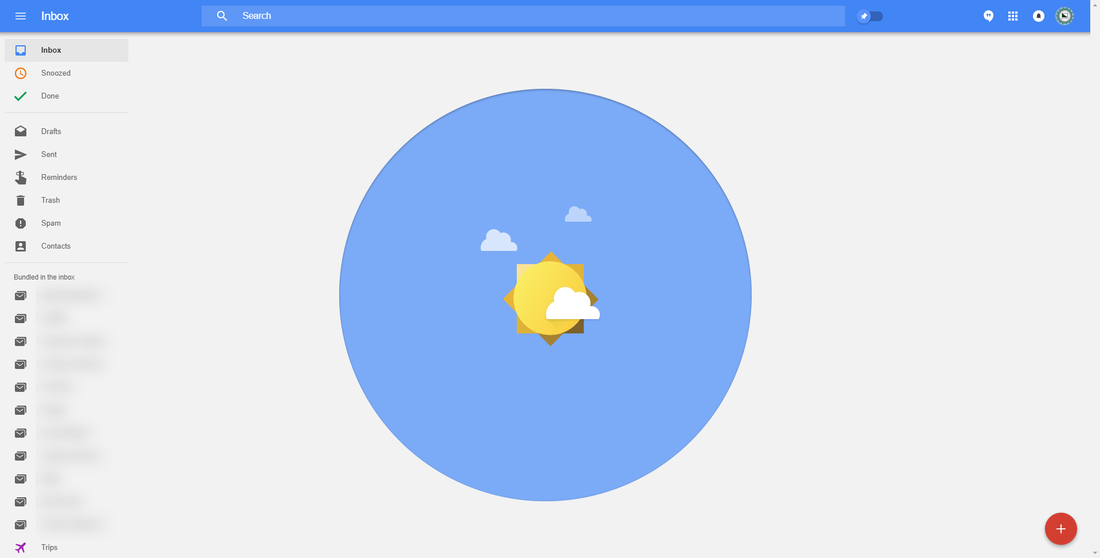 NozbeAnything that represents a task I need to do goes to my Nozbe Inbox (unless I've created or sent the task directly to the project to which it applies.) One of the ways I clear my email Inboxes so regularly, is that I don't store anything there. If it represents a task, I forward the message to my Nozbe address. I have a number of ways I add to my Nozbe inbox (you can read about that on my guest post for the Nozbe blog), and I even have found a couple of new ways since writing that article. The real lightbulb moment for me and David Allen's Getting Things Done methodology was realizing that capturing items/thoughts in an Inbox and clarifying them are two different tasks. They take different kinds of brainpower. So as soon as I realized I could trust Nozbe to hold all of my tasks until I was ready to process the how, when, why, and even if I was going to do them, my stress levels related to my never ending to-do list virtually evaporated. I try to empty my Nozbe inbox every day by sending the tasks to the correct projects (or by doing the tasks), but I'm not 100% perfect about that. I do at least look at the Inbox quickly every day to make sure nothing is falling through the cracks. You need a trusted system that you can easily fill with everything you're currently not working on. #10stepsbook EvernoteThe Evernote inbox is where I send my project reference materials (either emails, files, brainstorming notes, etc.) and information I want to keep long-term. I admit that I don't process this inbox very often - sometimes not for more than a week or two - but because of the type of information that ends up here, it's rarely a problem. Like the emails and items I collect in Nozbe, often I'm sending directly to the Evernote notebook to which it belongs instead of to the inbox anyway. Physical InboxI do need a place to put paper and other tangible items that represent tasks I need to do or items I want to reference later. For me, this is a plastic "in tray" on a bookshelf in my home office. My office is small, and I don't want my inbox cluttering my desk (it gets chaotic enough while I'm working!). It's out of sight enough that it doesn't distract me, but close enough I don't forget about it. I admit that I don't clean it out every week. I notice when I don't that I can feel the mental weight of an undone task taking up space in my brain, even if it's only a tiny sliver. I also know that if I'm good about cleaning it every week, it doesn't take that long, even though I'm usually doing several 2 minute tasks as I process the Inbox. Instapaper
I read quite a bit every week to try to stay as up-to-date as possible. But I collect these articles in another type of inbox to store until I have the right time and brainpower and to keep from fettering my day away by reading instead of doing billable work. The tool I use is Instapaper. One of the things I love about it is the social media links. I don't do much on social media, but my Twitter following is growing every day. I have Instapaper connected as a way to curate content for my Twitter followers. If I read something I think they might find interesting, all I have to do is tap the heart and I've shared it to Twitter. Sometimes articles from this Inbox end up going to my Nozbe or Evernote Inboxes afterward, if they represent a task I want to do or an item to save. But I'm glad to be able to pull out my phone or iPad if I find myself waiting a few minutes, and I often finish reading an article or two instead of being impatient. I also set aside 10 or 15 minutes two or three times a week to read articles. I do have other ways that stuff comes my way, but I usually am able to flow it into one of the above inboxes.
|
ArchivesCategories |




 RSS Feed
